Search by tag: macOS
4 articles
Running two isolated Claude Code setups on one Mac
Two isolated Claude Code installs on macOS via CLAUDE_CONFIG_DIR, with shared git and skill rules pulled in through a single imported CLAUDE.md file.
Xcode 26.4 broke paste in iOS simulator: one-line fix
Xcode 26.4 Simulator paste broken? One simctl command restores clipboard sync.
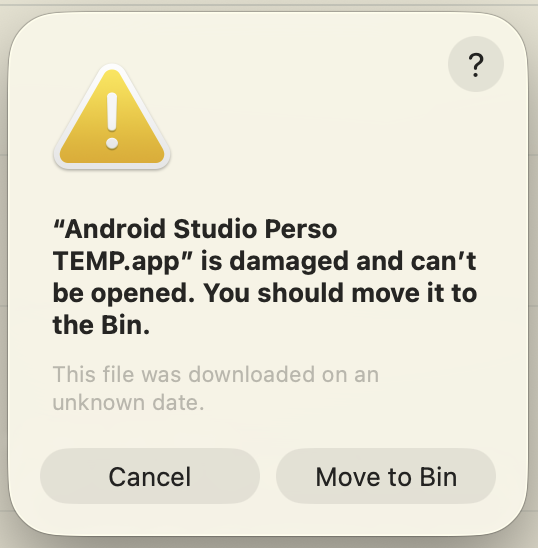
How to run two Android Studio instances on macOS
If you're an Android developer who juggles both professional and personal projects, you've probably faced this dilemma: you want to experiment with new plugins, test beta features, or try out different configurations on your personal projects—but you can't risk breaking your stable,…
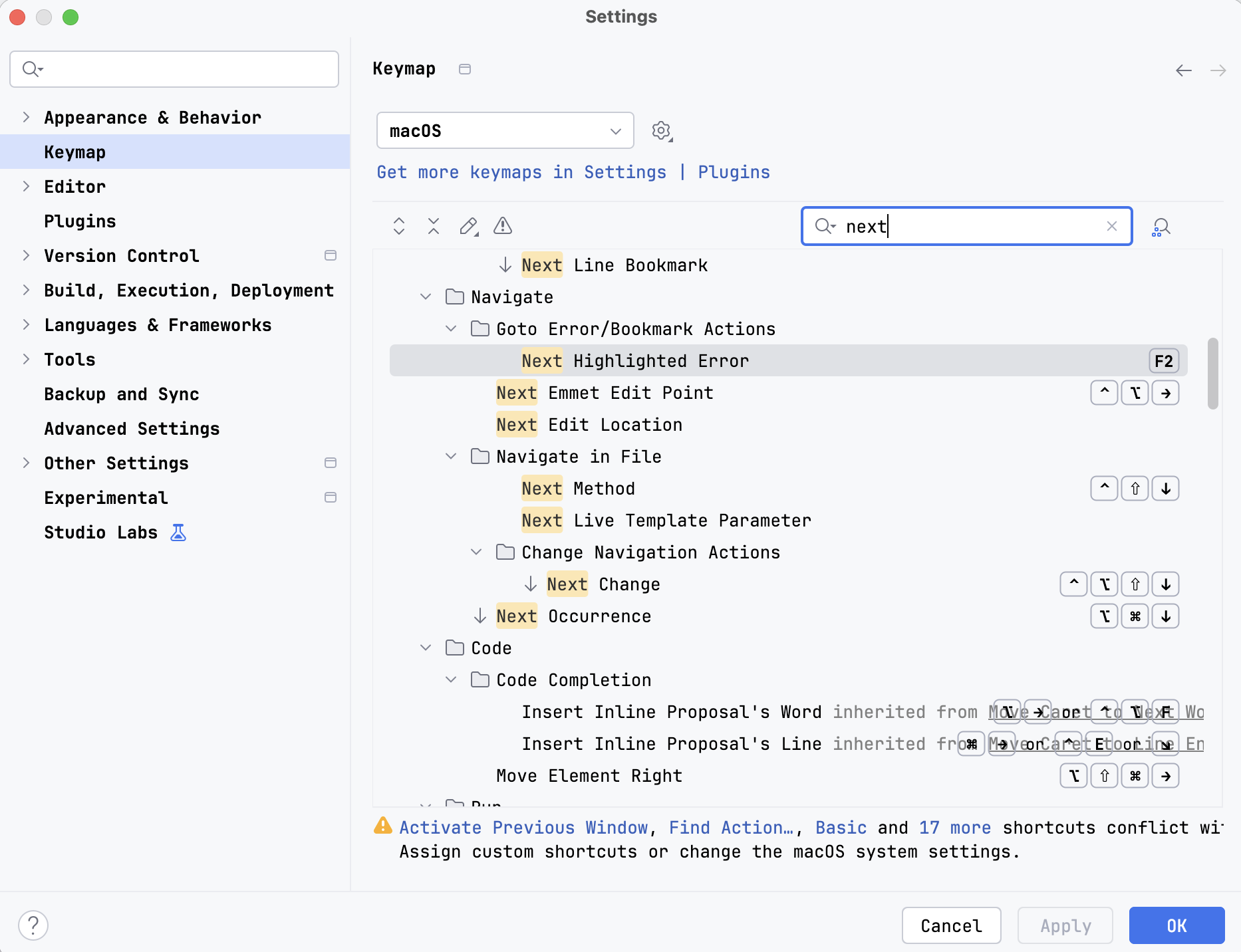
Android Studio shortcuts on macOS
This post will serve as a memo for the most useful shortcuts in Android Studio, running on macOS. I use the IdeaVim plugin, which may cause conflicts with the default shortcuts. Thus, some of my shortcuts could be different from yours.Android Studio allows the remapping of all its features (or…